
[intro]In this guide, you’ll learn how to set up MFA (Multi-Factor Authentication) on your EKM online shop and if you’re using the Staff Logins feature, any accounts there too. [/intro]
[summary]
[/summary]
What is MFA?
MFA stands for Multi-Factor Authentication. It is an extra layer of protection for your EKM online shop account, and it works on a simple idea: to prove you are who you say you are, you need to show two different things instead of just one. With MFA switched on, a correct password is no longer enough. After typing it in, you are asked for a second piece of proof that only you should have. This is usually a short code, typically six digits, that changes every 30 seconds or so. A helpful way to think about it is a shop with two locks on the door. The first lock is your password. The second lock is the code on your phone. A thief might pick one lock, but having to beat both makes breaking in far harder. Setting up MFA takes just a few minutes. You will also be given backup codes during setup. You need to save these somewhere safe, because they let you back into your account if you lose or change your phone.
Why do I need MFA?
Your EKM online shop holds valuable information and access: customer names and addresses, order histories, payment details, and the controls for your stock and prices. For criminals, that makes it an attractive target, and small shops are targeted just as often as big ones, because they are often easier to break into. The biggest reason to use MFA is that passwords alone are no longer safe enough. Many people reuse the same password across several websites. When one of those sites is hacked, the stolen passwords are shared and sold online, and criminals then try them on other accounts. With MFA, a stolen password on its own is useless, because the thief would also need the code on your phone.
[caution] Before you begin, you need to ensure that you have installed an authenticator app your mobile phone. If you’re an Android user and you’ve not used an authenticator app before, popular versions include Google Authenticator or Microsoft Authenticator. However, if you’re an Apple user, this functionality is already available on your iPhone as standard – you can read more in this Apple support guide. [/caution]
Merchant MFA
1. From the dashboard, click Settings in bottom left-hand corner: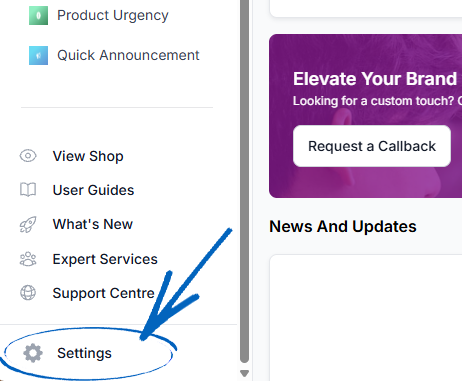
2. On left-hand side menu, beneath Account Settings, click Security: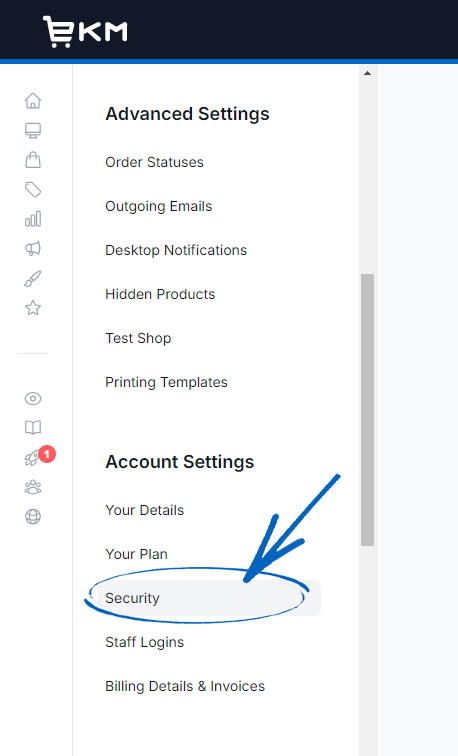
3. You’ll then see two elements – Account Details and Multi-Factor Authentication. Click the green button on the bottom right-hand side to begin the process of setting up MFA on your EKM online shop: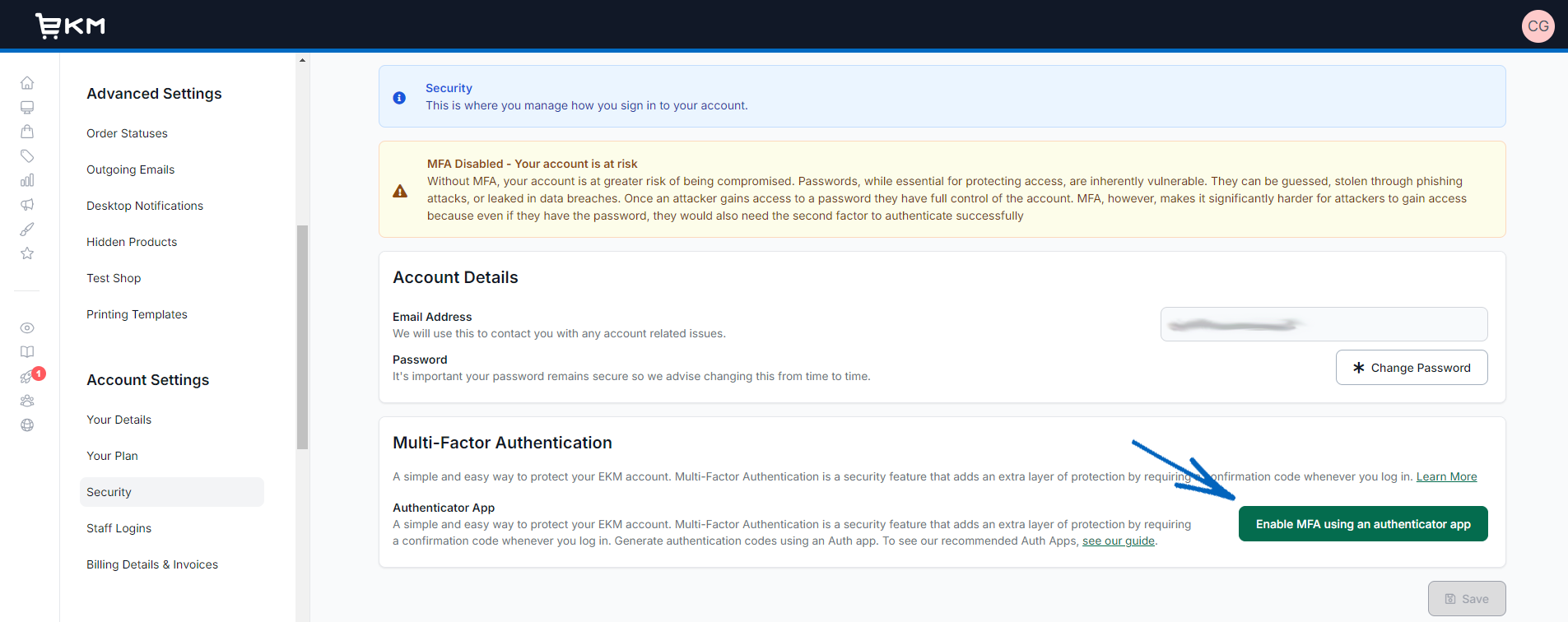
4. In the modal that appears, add your password to the field provided and click Next: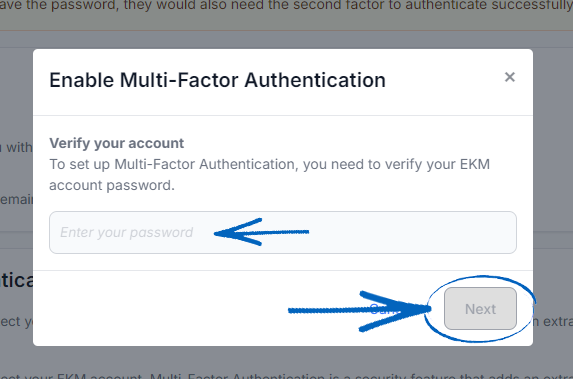
5. In the next modal, open the authenticator app on your phone and tap to scan a QR code. Scan the QR code and click the green button: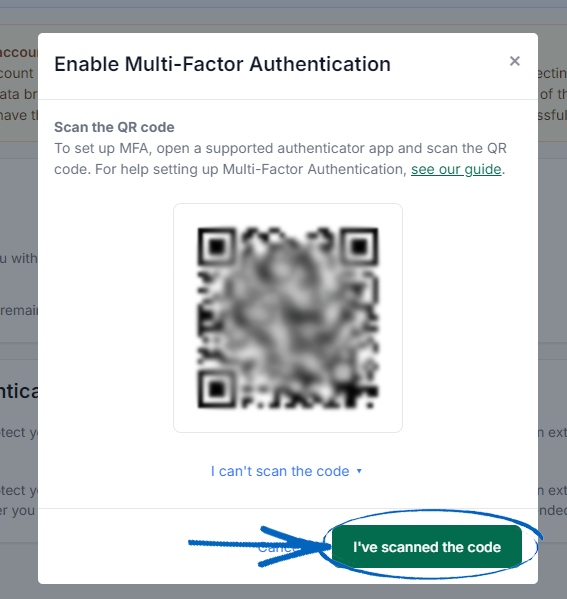
[remember]If you are unable to scan the QR code, click the ‘I can’t scan the code’ text: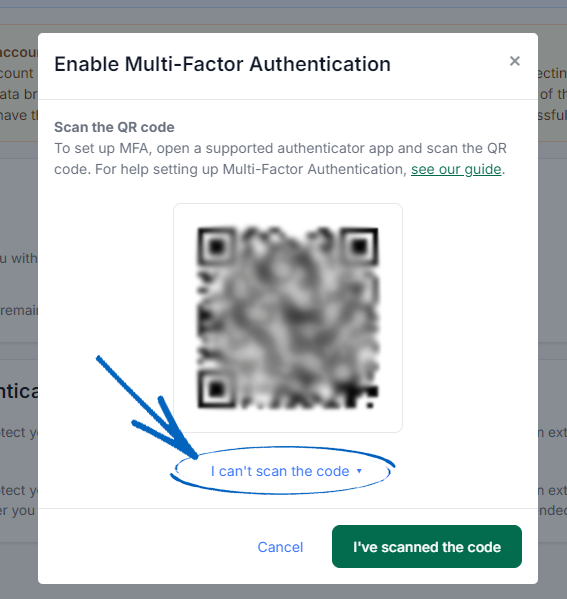
This will reveal a text-based code you can use instead. Add this to your authenticator app and click the green button: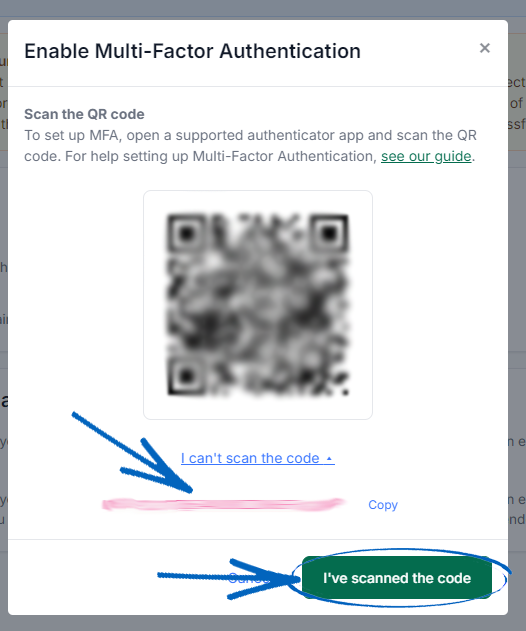
[/remember]
6. In the next modal, add in the six-digit code from your authenticator app: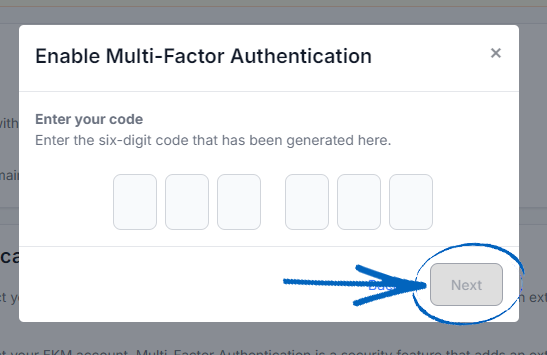
7. You’ll then see this modal. You can click to copy the codes and paste them in a safe place or export them. When you have stored these codes somewhere safe, tick the box and then click the Done button: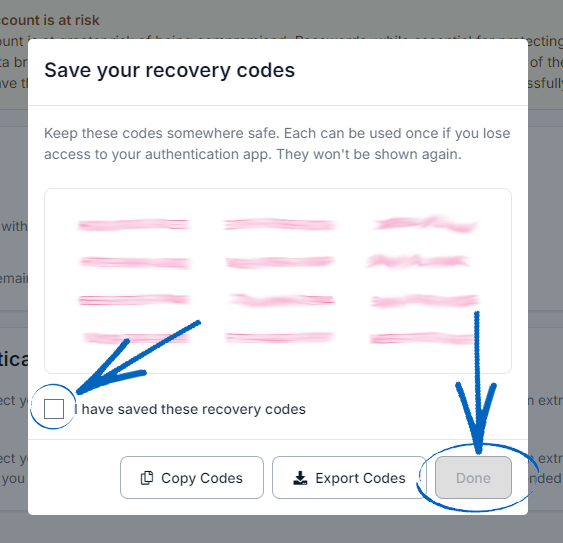
8. You’ll then see a red button on the Security page, indicating that MFA has been successfully set up on your EKM online shop. You’ll notice there is a button on this page to Generate New Recovery Codes should you lose access to your authentication app. Clicking this will mean your current authentication app codes will no longer work, and you’ll be taken through the process of resetting your codes: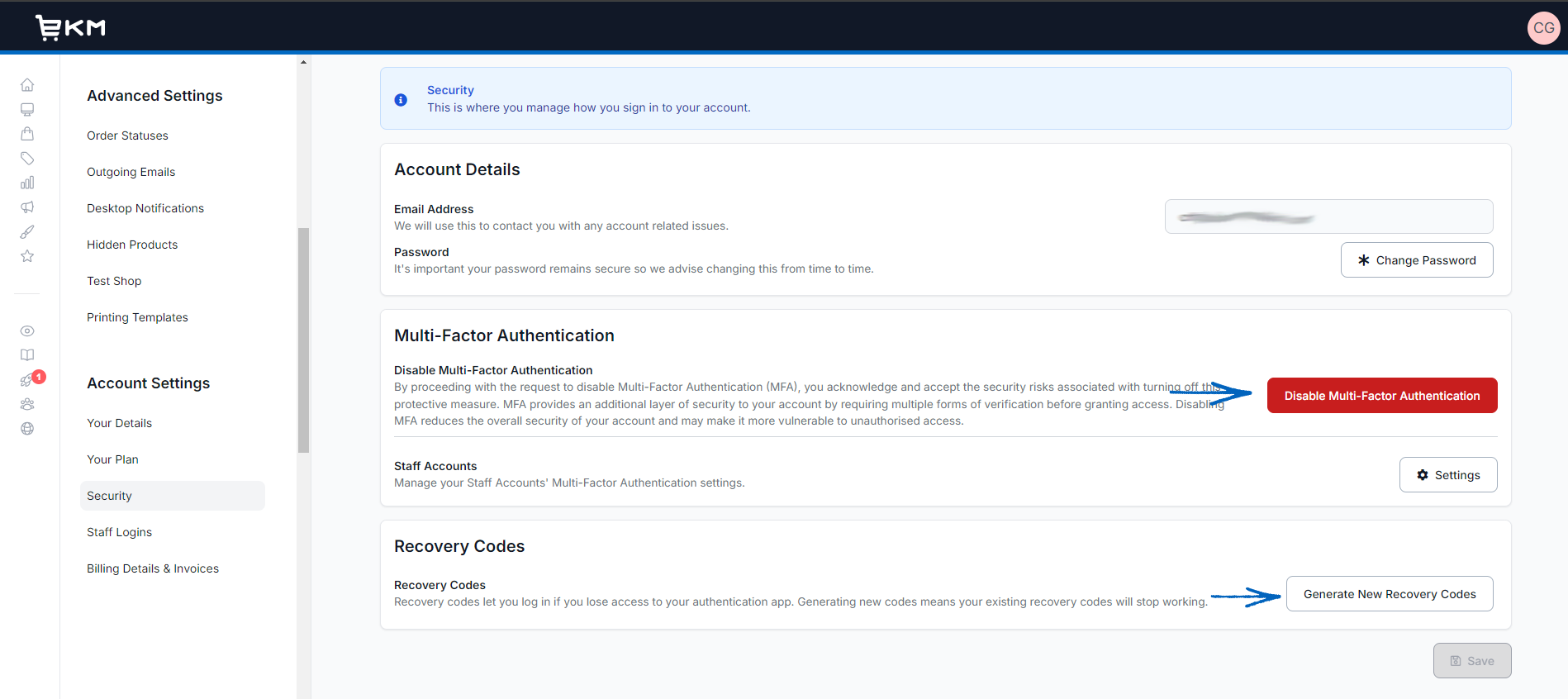
Staff Logins MFA
1. If you have also installed the Staff Logins feature on your EKM online shop, you’ll notice that you can apply MFA to each of your staff accounts too. Click Settings on the right-hand side: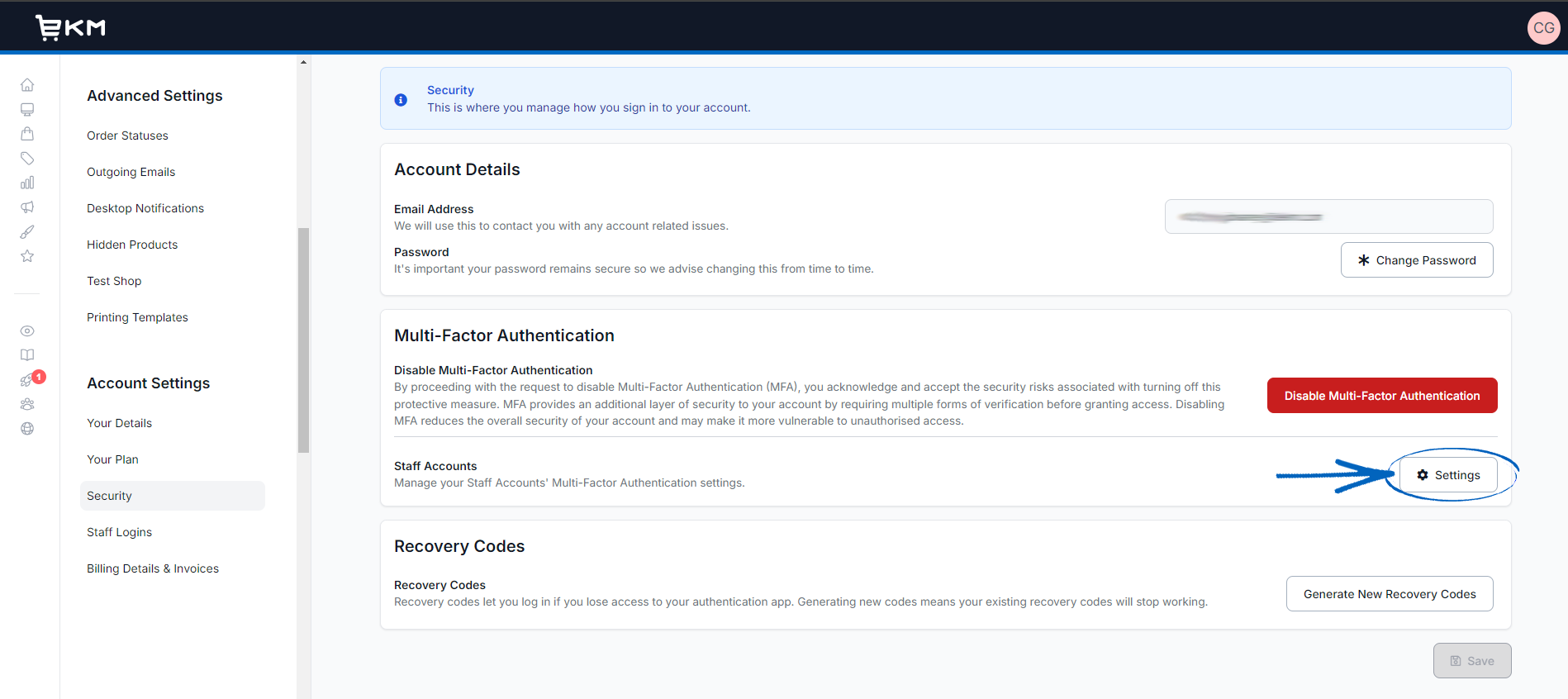
2. Now you need to tick the box on this page to enforce MFA on each of your staff accounts: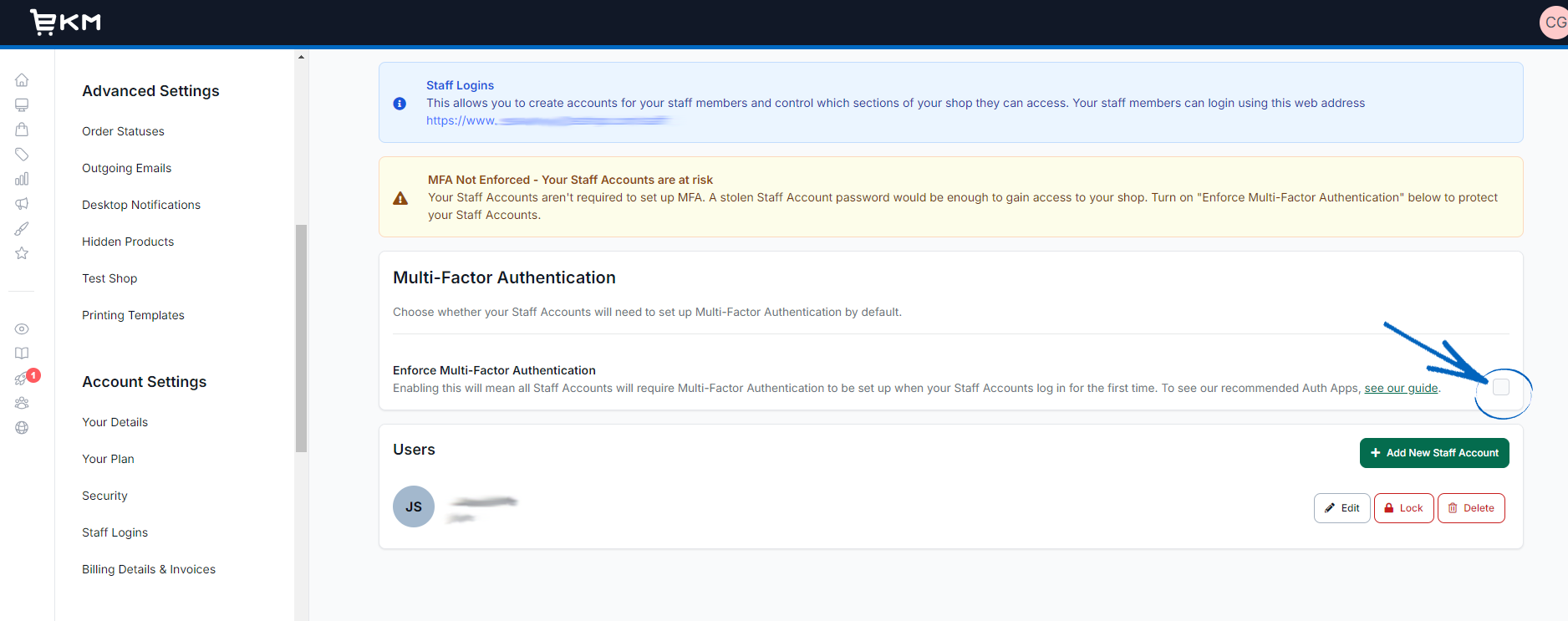
What Your Staff Will See
1. After you have turned MFA on for all your staff accounts, when each member logs into their account on your EKM online shop, they will automatically be directed to the Security page to set up MFA by clicking the green button: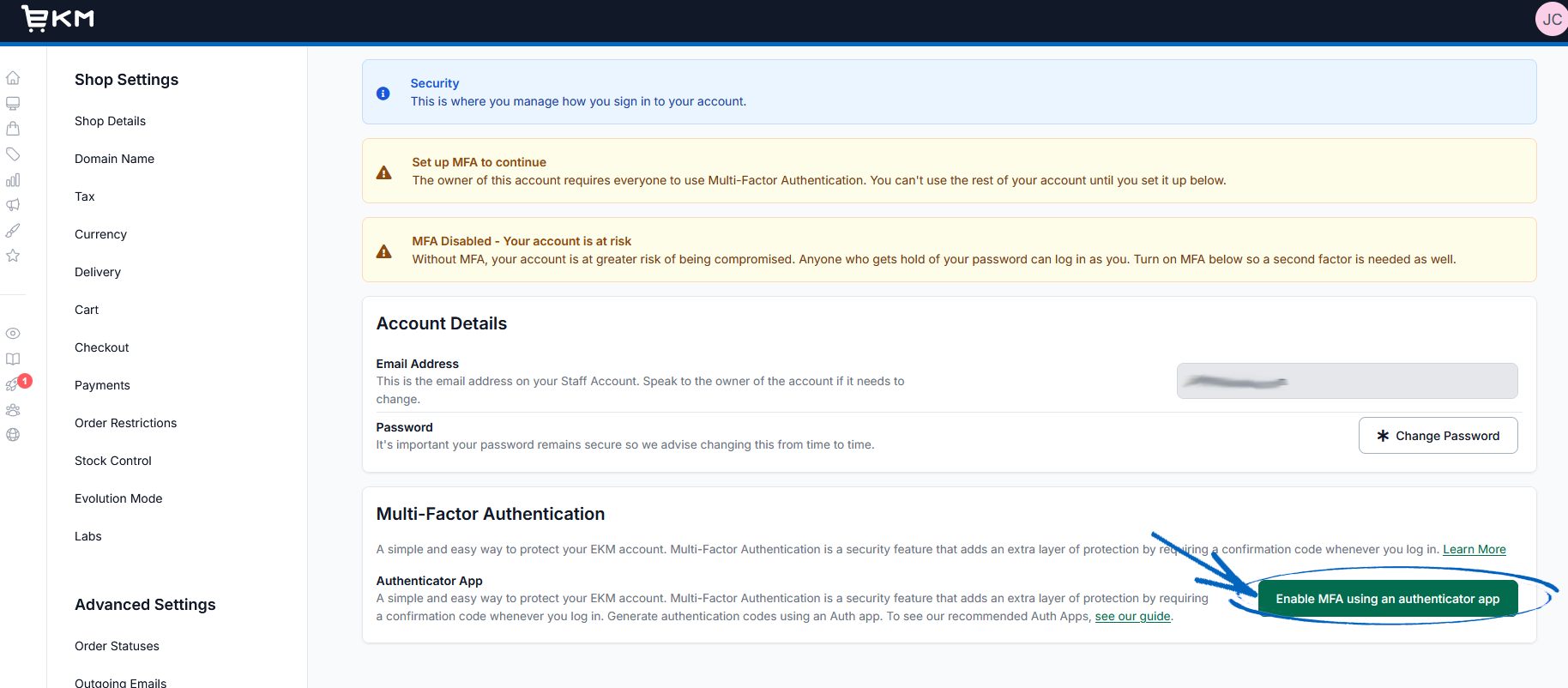
2. As before, setting up MFA will require each of your staff members to have downloaded an authenticator app to their phone to use as part of the login process going forward. They will need to follow the same steps as stated above, scanning the QR code or adding the text-based code to their authenticator app, before adding in the six-digit code and storing their recovery codes in a safe place. When they have correctly set up MFA, their Security page will look like this: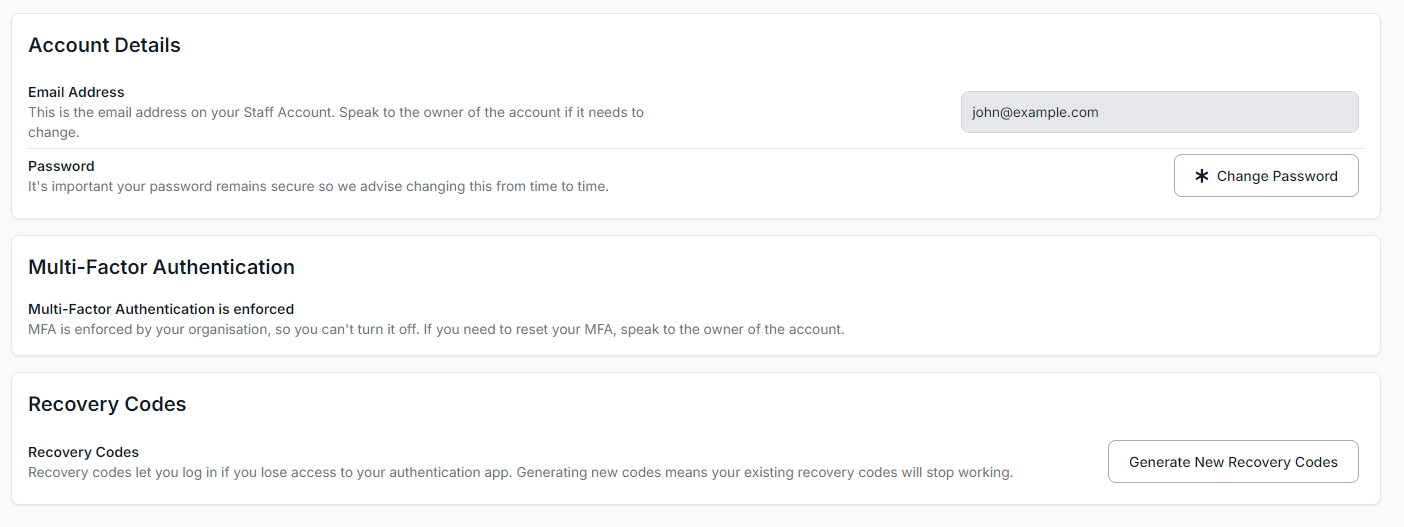
3. As the EKM online shop owner, you will be able to see which of your staff has set up MFA on the Security > Staff Logins page: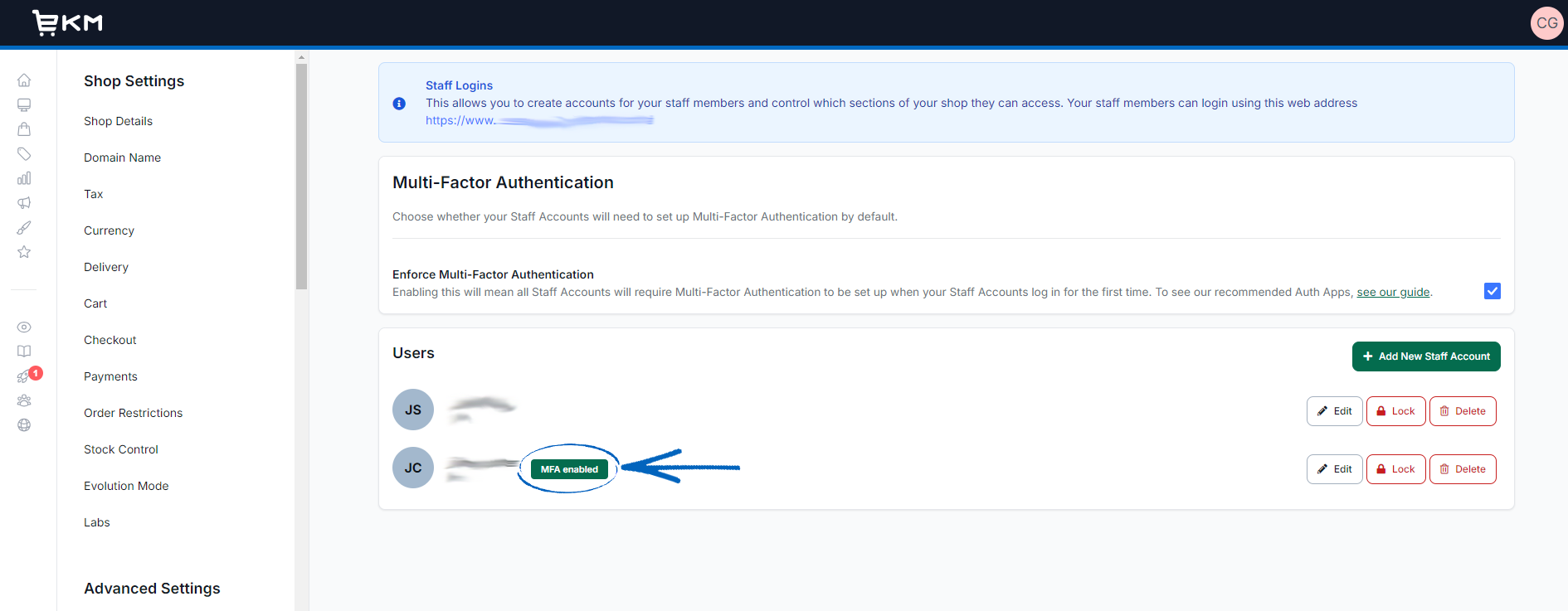
Account Recovery for Staff Logins
1. If a member of staff loses access to their authenticator app, you will need to reset their recovery codes. To do this, from the Security > Staff Logins page, click the Edit button to the far right-hand side of the users’ name: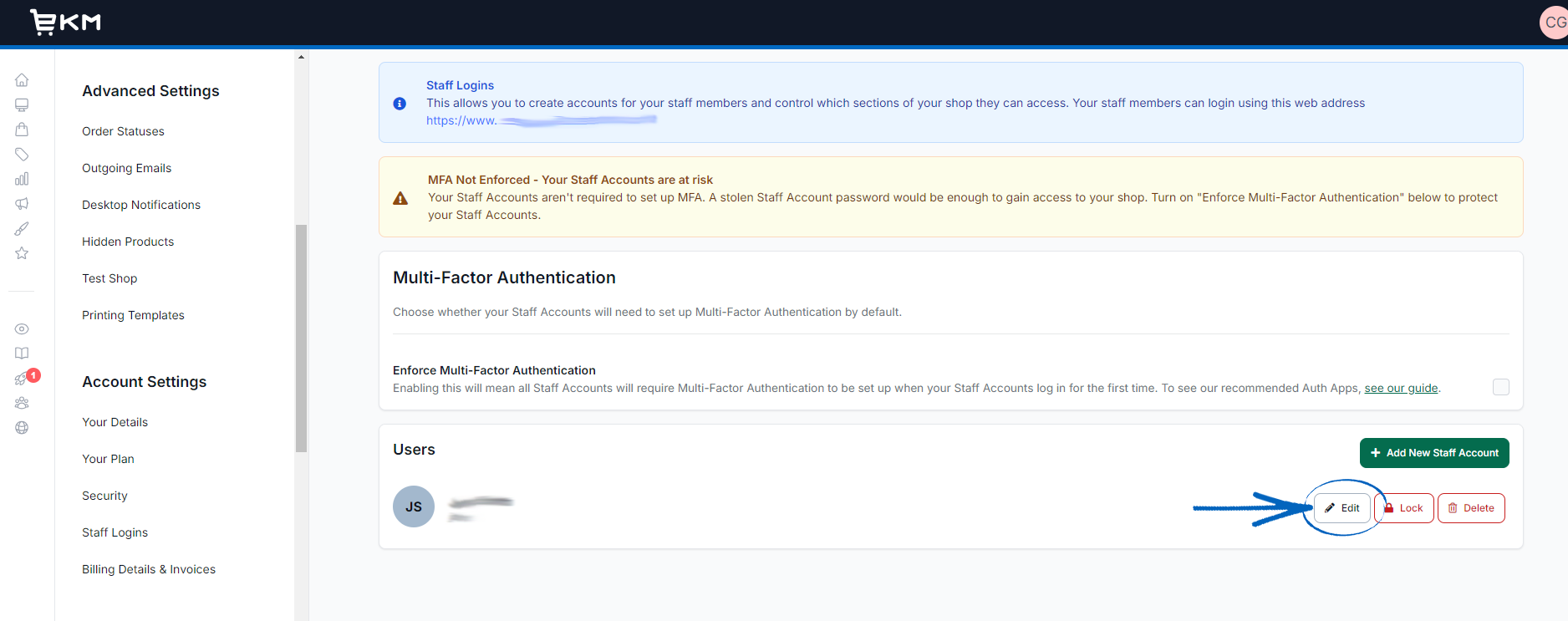
2. Scroll to the bottom of this page, and click the Reset Multi-Factor Authentication button in the bottom right-hand corner, and then click Save: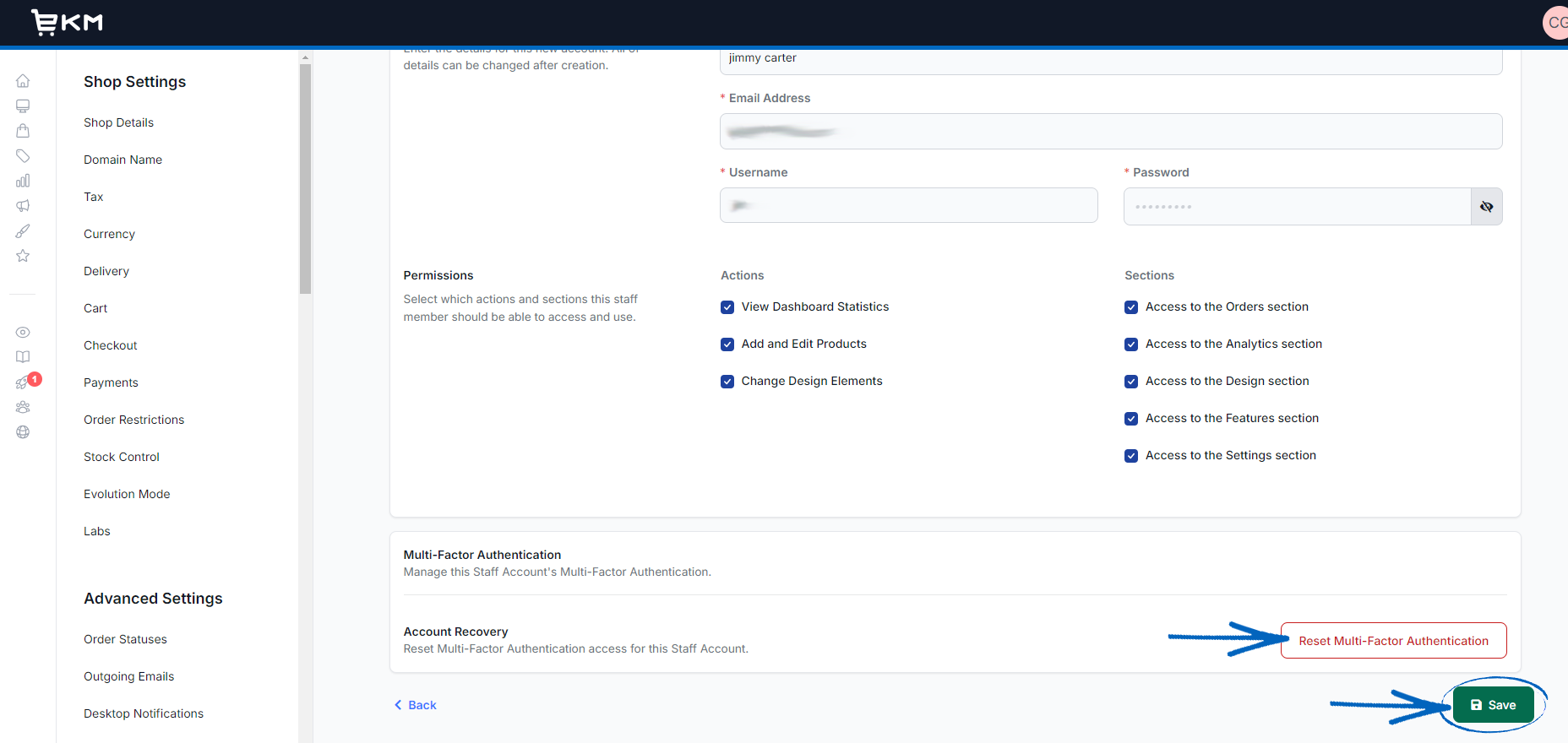
3. This action will mean that your member of staff will need to set up MFA on their account once more.
[more]
[/more]
[contact]If you need our help with your EKM online shop, contact the Customer Support Team, who can point you in the right direction. Our opening hours are 9 am - 5.30 pm Monday to Friday, for telephone calls, live chats, and emails. Outside of these hours, you can leave a message for us in the live chat window or email support@ekm.com, and we will answer as soon as possible. If you'd like to suggest a feature or an upgrade on any of the EKM platforms, please let us know on the EKM Suggestions Board. [/contact]